


Issue
In zwcad, users may need to replace one block with another. Simply copying, deleting, or reinserting a block can cause misalignment or require manual repositioning. How can this be done accurately?
Prerequisite and Step-by-Step Solution for Accurate Block Replacement
Prerequisite: Ensure the base points of the two blocks are aligned, as the base point position will remain unchanged during replacement.
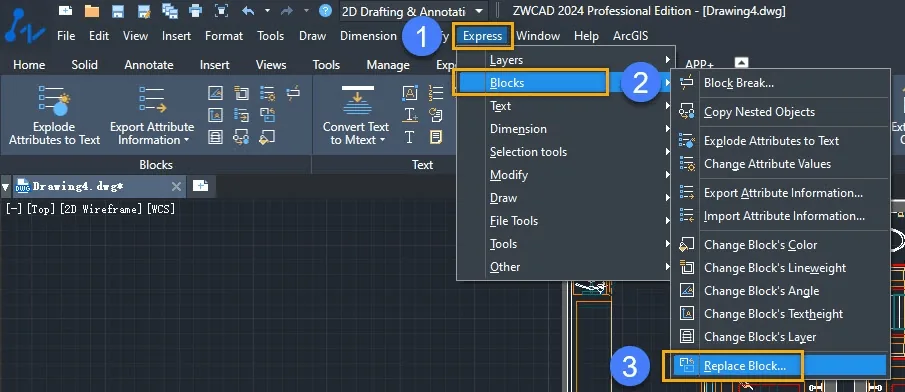
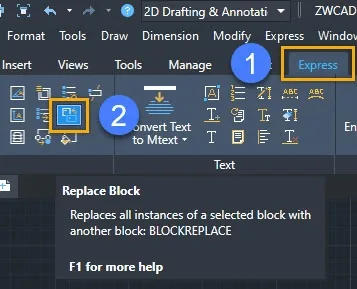
1. On the menu, go to Express → Blocks → Replace Block (or type BLOCKREPLACE). Alternatively, on the Ribbon, go to Express → Replace Block.
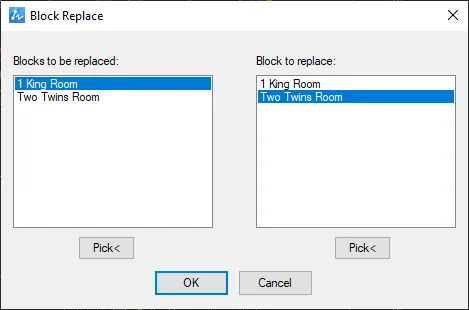
2. In the dialog box, select the block to be replaced on the left, then choose the new block on the right to replace it.
Conclusion
Replacing blocks manually by copying and deleting can easily lead to misalignment and tedious repositioning. By ensuring that the base points of both blocks are aligned beforehand and utilizing the built-in BLOCKREPLACE command from Express Tools, you can swap definitions accurately across your entire drawing while keeping the insertion points perfectly intact.
