


Issue
This article walks you through the approach to changing a block’s color in zwcad.
Methods for Changing Block Colors in ZWCAD
There are two ways to change block color:
1. Double-click the block to enter Block Editor, select the patternin the block and change its color;
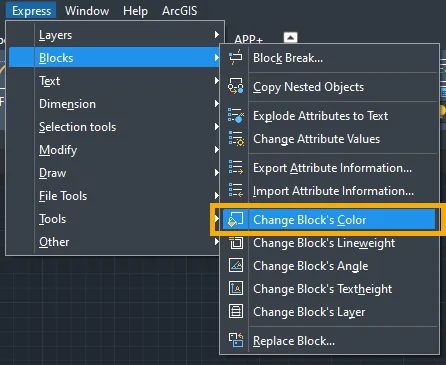
2. Click Expresson the menu, find Blocks, then click Change Block’s Color (or you can enter the shortcut command CHGBCOL), then select the block and you can set the color.
Conclusion
Changing a block’s color in ZWCAD can be easily accomplished by either modifying the pattern directly within the Block Editor or utilizing the CHGBCOL shortcut command from Express Tools. Selecting the appropriate approach based on your editing needs allows you to efficiently control object properties and maintain consistent visual styling throughout your drawings.
