


In CAD drawings, blocks are often reused and shared across multiple projects. Over time, block names can become inconsistent, unclear, or conflict with other blocks. Renaming blocks in ZWCAD, helps maintain clarity, improve organization, and avoid naming collisions—especially when working with imported drawings or collaborating across teams.
ZWCAD provides a simple yet powerful way to rename blocks, whether you’re updating a single block name or applying batch renaming with wildcards. Below are two practical methods to rename blocks efficiently using the built-in RENAME command.
Step-by-Step Methods for Renaming and Batch Renaming Blocks in ZWCAD
Step 1: Access the RENAME Command
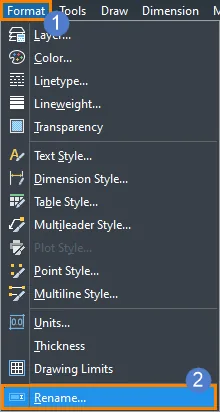
Click on Format in the menu bar, then select Rename, or type RENAME in the command line and press Enter
Step 2: Rename a Single Block
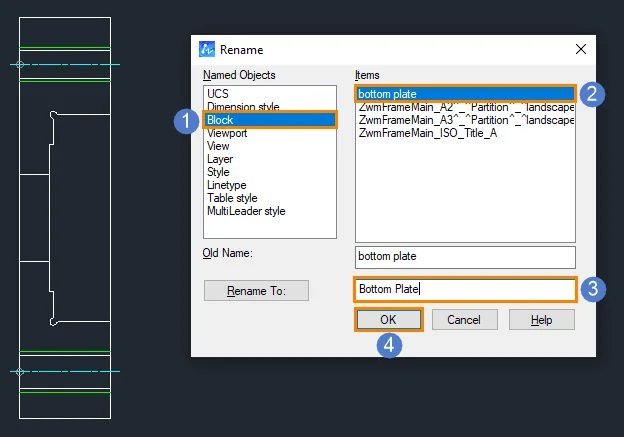
Once the Rename dialog box appears:
- Select Block under the Project section.
- Choose the block you want to rename from the list and enter the new name for the block in the Rename field.
- Click OK to apply the changes.
Step 3: Batch Rename Blocks
If you need to rename multiple blocks, such as adding a suffix to all block names, follow these steps:
- In the Rename dialog box, select Block again.
- Select multiple blocks from the list on the right.
- In the Rename field, use * to represent the original name.
For example: typing *zwcad will append “zwcad” to all selected block names.
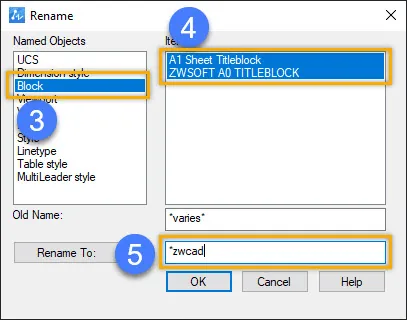
- Click OK to complete the batch renaming.
Conclusion
Renaming blocks in ZWCAD is a straightforward process that plays a key role in maintaining clear, organized, and collision-free drawings. Whether you need to update a single block name or perform efficient batch renaming using wildcards, the built-in RENAME command provides the precision and flexibility required to keep your project data consistent.
