


Issue
Sometimes, ZWCAD may behave abnormally due to unintended settings. If no special customization has been made, resetting ZWCAD to its default settings can often resolve the problem.
Solution
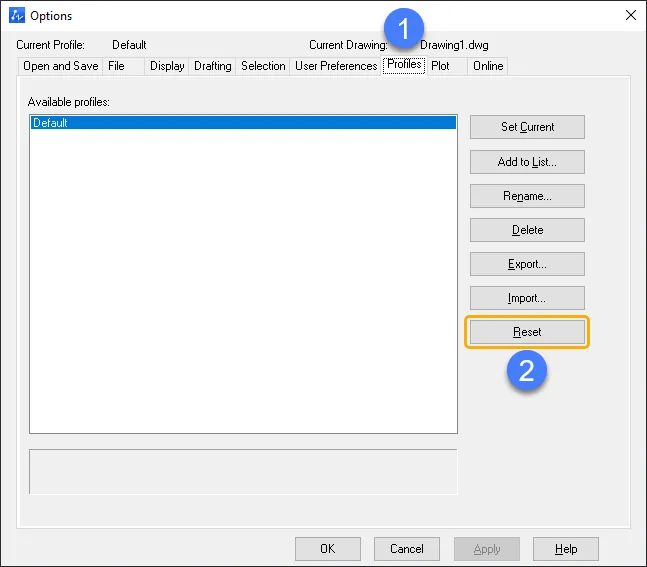
1. Enter the shortcut OP to open the Options window, go to the Profiles tab, and click Reset.
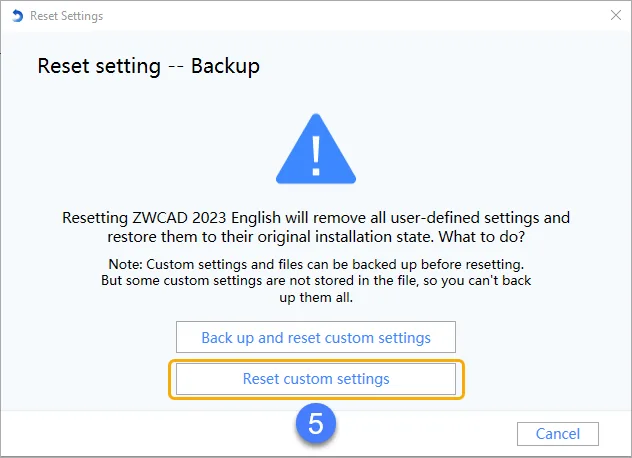
2. Close all ZWSOFT programs. From the Start menu, locate the ZWCAD folder, select Reset Settings to Default, and confirm.
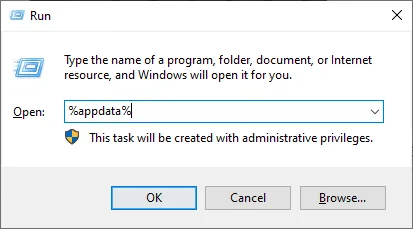
3.Press [Win+R] to open Run window, type %appdata% and click OK.
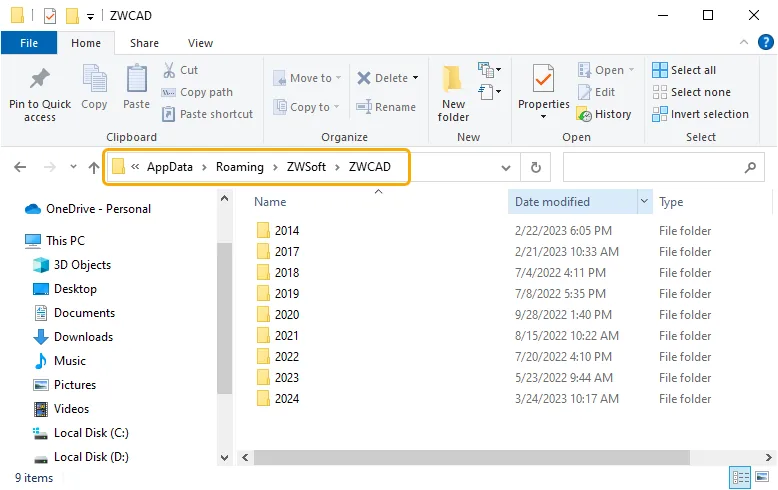
4. Locate the ZWCAD folder and delete the version you want to reset.
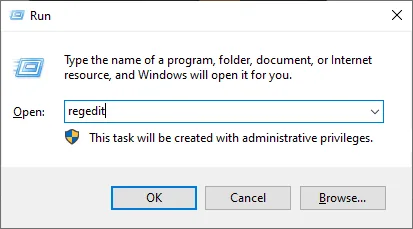
5. Again press [Win+R], type regedit, and click OK.
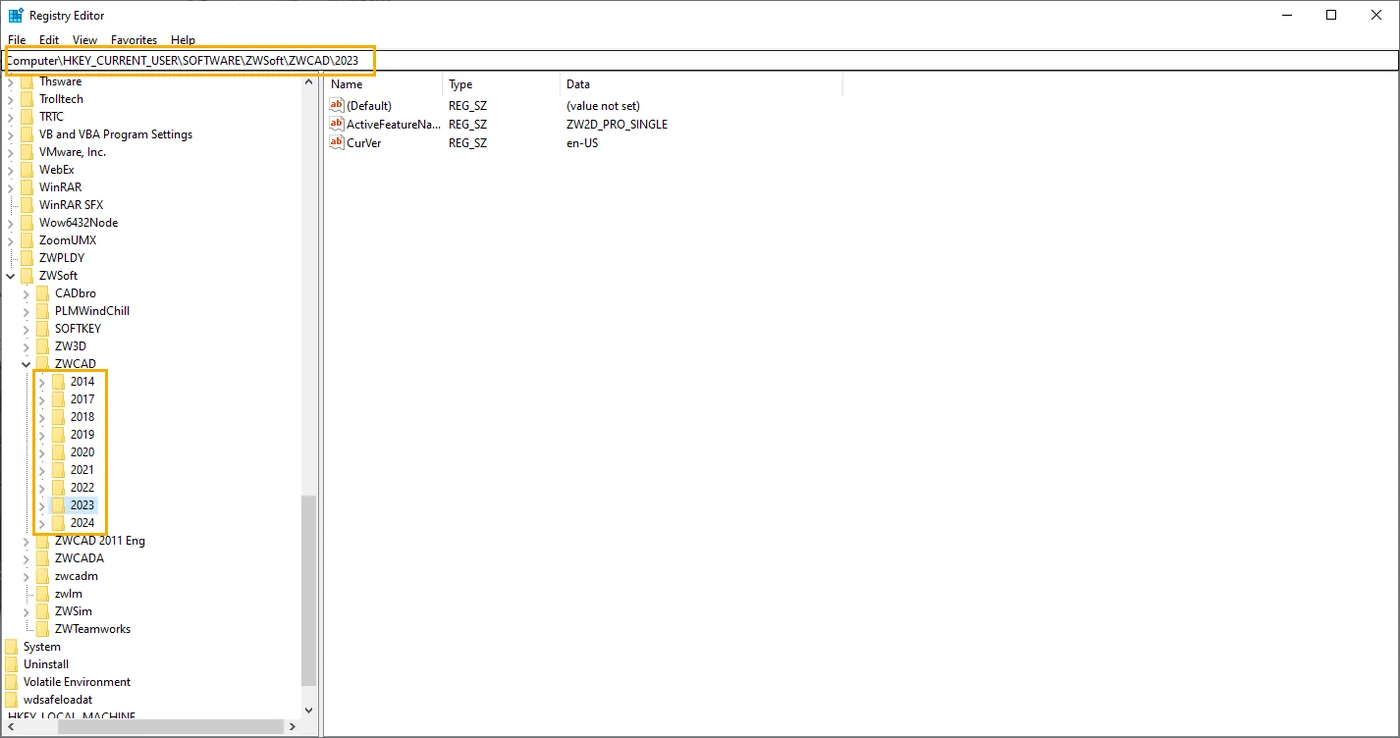
6. In the Registry Editor, navigate to Computer\HKEY_CURRENT_USER\SOFTWARE\ZWSoft\ZWCAD and delete the folder for the corresponding version.
You may not need to perform all steps. After each step, try reopening ZWCAD to check if the issue is resolved. If not, proceed to the next step.
